
Camera Discovered but No Live Preview? Check the Account and Stream
Recent Posts
-
-
-

-
-


Popular Posts
-

-

-

-
-


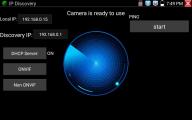
The tester lists the camera by name, but opening the tile gives a black screen or a login error. Leave the working network connection in place. Write down the exact message and try to view one channel with one known account.
1. Can the camera show its own live picture?
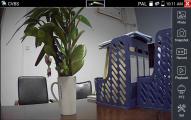
Open the manufacturer’s supported viewer and select the same channel. Look for a moving timestamp or movement in the scene. A thumbnail left over from an earlier session can appear even after a stream has stopped.
If this viewer also shows a black picture with a moving overlay, check the lens cover, illumination and exposure for that channel. If it reports a stream error before a frame arrives, check that the channel is enabled and has an active video profile.
2. What happens when the tester signs in?
On an authentication error, check which account the tester saved for this device. Verify that the camera allows that account to view live video through the selected service. Some models have separate ONVIF users. A successful web login establishes only that the web account works.
3. Compare the main stream and substream
- Record the codec, resolution and frame rate of the recording profile. Leave those settings in place and select an existing lower-resolution substream supported by the tester.
- Play that substream on the tester. If it opens while the main stream fails, compare their settings with the tester’s decoder limits. Record which profile produced a picture.
- If both fail, open the model’s documented RTSP address in an approved player on the same network. Select the same channel and profile, and enter credentials in the player’s login prompt.
Use the result to choose the next check. If the same stream plays in the separate player, revisit the tester’s saved profile, account and decoder support. If the manufacturer’s viewer works while both RTSP clients fail, verify the RTSP service, stream address and permitted network path. Retest in the recorder and confirm its intended recording profile still plays back.
To work through every layer from power to the recorder in one pass, use the IP camera no-video troubleshooting guide.